Oracle 11g: Installation and Configuration On Redhat Enterprise Linux 4.7 AS

(c) brokenribgolfer.com


Author: Mark Hopkins   Email

Date Published: 08.02.2009
Date Last Modified: 03.14.2026 (formatting)

This article is the result of a need for an IBM Tivoli Enterprise Monitoring (TEM) data warehouse, as well as a repository for IBM WebSphere Portal and Process Server, and as a tutorial for my good friend Maurice. As the title suggests, we will provide a step-by-step guide to installing the Oracle 11g relational database management system (RDBMS) on Redhat Enterprise Linux 4.7 AS. Breaking it down, the following will be performed:

  • Pre Installation
  • Oracle 11g Instalation
  • Post Installation
  • Oracle Enterprise Managerli>

To all you DBA's out there, while we do appreciate constructive criticism, please keep in mind that we are NOT database administrators. We are also not security administrators. So, we are well aware that there are many aspects to Oracle that we are not touching on with this article, as well as security related topics being ignored. Let's just say that these topics are not in the scope of this article. If anyone would like them covered, drop me an email and I will add it to the already long list of requests.


Background
Assumptions
Requirements
Procedure

Conclusion
Printing


Background

Almost every organization that has a need to store data uses a relational database solution. It is amazing, just since the publish date of this article, many choices have been added as companies look for solutions that better fit their needs. These days, while Oracle still lays claim to highest market share, two of the top four are now open source. While we will always write articles that are either requested and/or are interesting, our main future focus will be on open source offerings like PostgreSQL, MySQL and others.


Assumptions

We assume that you have already provisioned a fully functional Redhat Enterprise Linux (RHEL) 4.7 AS server. We are quite certain that ES would work as well. This server should be functional with respect to DNS and network connectivity. While perhaps not a complete list of files to be modified, there are the ones that our kickstart configuration added or modified. Failrly typical and kickstart is not the only way to provision the server.

  • /etc/hosts
  • /etc/resolv.conf
  • /etc/ntp.conf
  • /etc/modprobe.conf
  • /etc/sysconfig/network-scripts/ifcfg-bond0
  • /etc/sysconfig/network-scripts/ifcfg-eth0
  • /etc/sysconfig/network-scripts/ifcfg-eth1
  • /etc/profile

You may or may not need to modify any or all of the above mentioned files. One thing is for certain however. If your system does not meet certain requirements, the Oracle installer will let you know. It's also good about telling you what you need to do to fix the issue(s).


Requirements

As for requirements, we can begin with the filesystem layout. I am sure that Oracle will tell you everything necessary in their documentation and surely it is well written. OFA (Oracle Flexible Architecture) was once a concept worth mentioning, however we do not know if it even still exists. If you are planning some elaborate database you will certainly want to consider disk layout for performance reasons. However, once again this is a basic install and configuration procedure, thus we will not bother.

For this simple install, we provisioned a 20G LUN for everything; OS and Oracle. When it was all complete, we ended up with what you see next. It appears that when we plan to populate the database, we will need to add more space to /u01. We are using LVM so this will be a very easy task; but we will not do that here.

Filesystem 1K-blocks Used Available Use% Mounted on
/dev/xvda1147764118001283359%/boot
none39328003932800%/dev/shm
/dev/mapper/vg01-lv051032088351409445204%/opt
/dev/mapper/vg01-lv031032088341249455364%/tmp
/dev/mapper/vg01-lv065999092516406053029291%/u01
/dev/mapper/vg01-lv0482569526665136117238886%/usr
/dev/mapper/vg01-lv02103208824835673130426%/var

The remainder of our requirements (some repetition) is as follows:

  • Redhat Enterprise Linux 4.7 AS
  • Oracle 11g distribution (we used linux_11gR1_database_1013; version 11.1.0.6.0)
  • Networked client (Mac, Windows, Linux, etc.)
  • XWindows server on client (We use Xming on Windows XP SP3)
  • SSH Client (We use PuTTy)
Architecture


This being a "basic" Oracle install, there really is no need to talk about archicture in this article. If you search the internet for "oracle architecture examples", as we did, you will find a plethora of available information, often quite well depicted/written.


Procedure

Now that we have laid the groundwork, let's get going with the actual steps.


Pre Installation


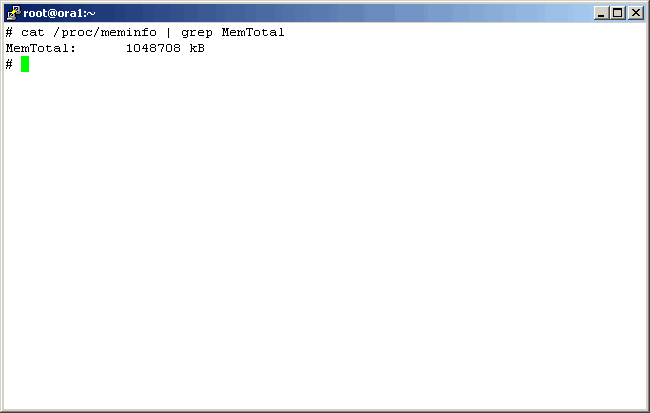
Unless we provisioned a minimum of 1GB of RAM to this system the Oracle Installer complained. So to avoid being nagged about it, we did so. Later after the install we reduce it to 768M and it runs just fine for our current needs.


Command(s)

                
cat /proc/meminfo | grep MemTotal


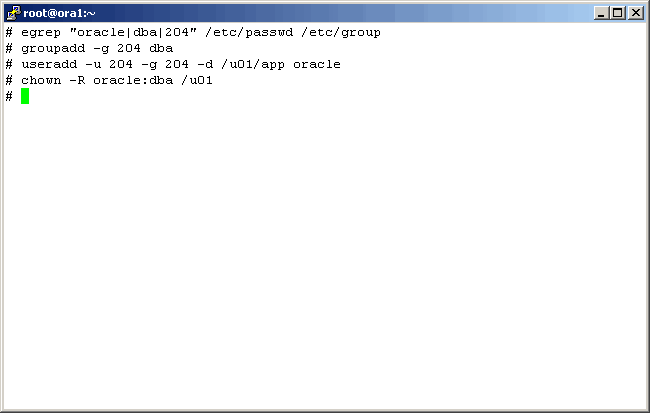
Here we do some checking, create a group and user for Oracle, and make certain of directory ownership.


Command(s)

                
egrep "oracle|dba|204" /etc/passwd /etc/group
groupadd -g 204 dba
useradd -u 204 -g 204 -d /u01/app oracle
chown -R oracle:dba /u01


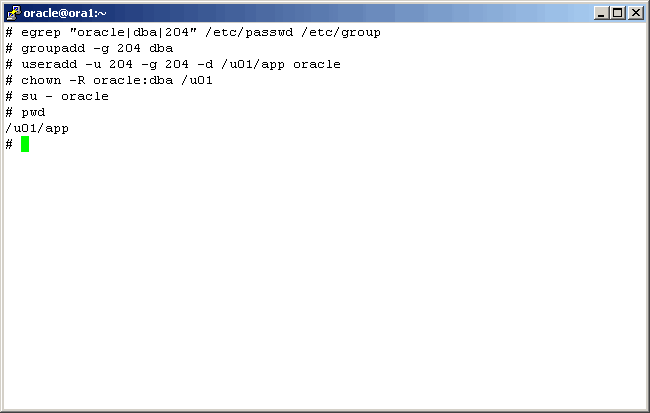
And now we perform a simple test by switching user (su) to the Oracle accound.


Command(s)

                
su - oracle
pwd


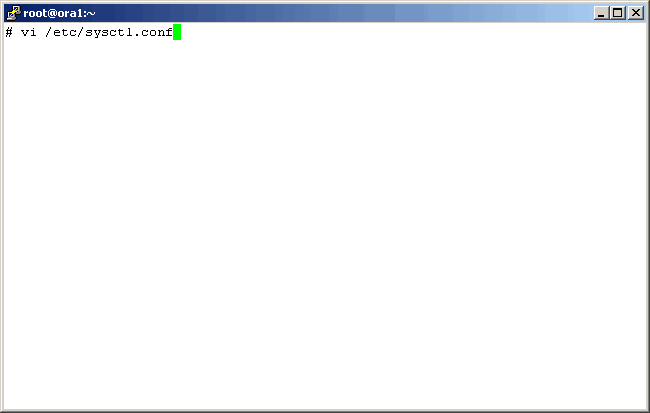
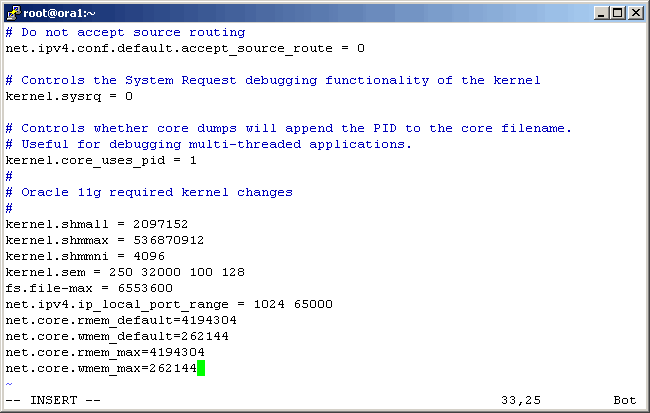
There are several kernel parameters that need increasing. Let's get started by editing /etc/sysctl.conf.


Command(s)

                
vi /etc/sysctl.conf


In the vi editor, jump to the bottom of the file (shift-g) and append the recommended parameters and their values.


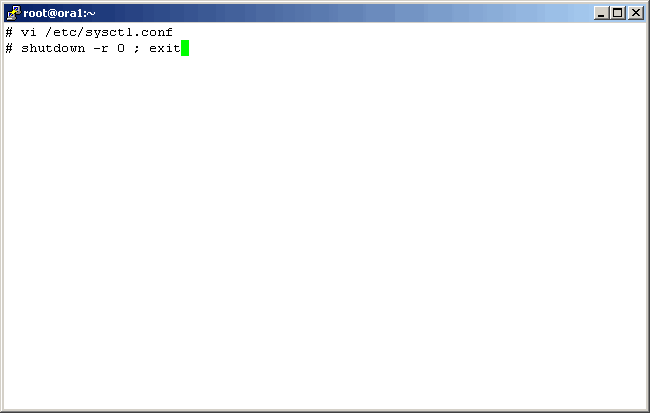
Reboot the server to permanently modify the kernel parameters.


Command(s)

                
shutdown -r 0 ; exit


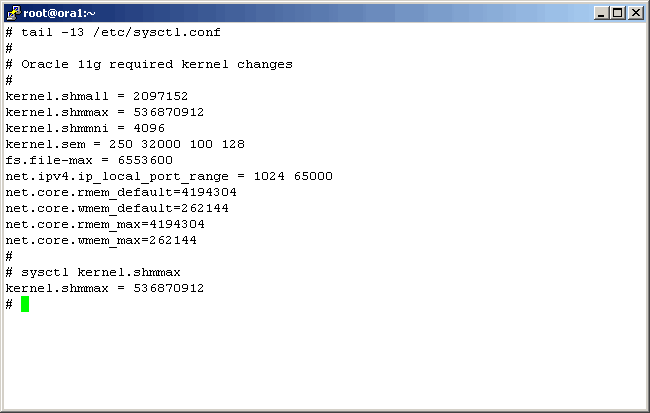
Now that the server is back up, let's check one of the changed values.


Command(s)

                
sysctl kernel.shmmax


Install Oracle 11g


Now that we are (fairly) certain that the Oracle Installer requirements are met, we can begin with the Oracle installation. Note that all Oracle software is installed by the Oracle user, and not by the root user. There are a few times however that root access is needed as you will see later in this procedure.


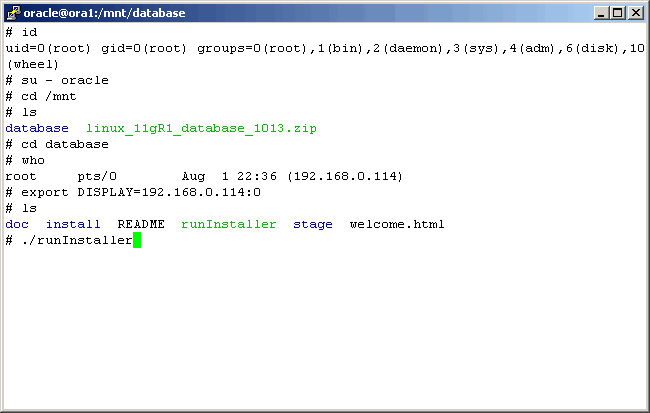
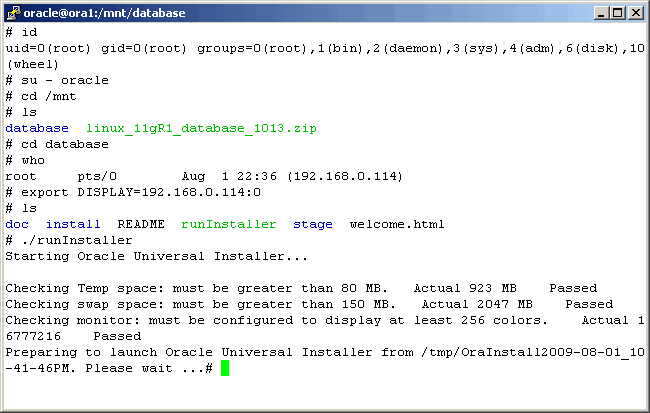
Switch user to (or login as) the Oracle user. At this time two things must have already happened. One is that you have started your XServer on the client and the other is that the Oracle 11g distribution media had to have been mounted. We then navigate to where the Oracle Installer is located, set our DISPLAY variable and execute the installer.


Command(s)

                
id
su - oracle
cd /mnt
ls
cd database
who
export DISPLAY=192.168.0.114:0
ls
./runInstaller


While awaiting the GUI, you should see this, indicating that certain tests have passed. If the tests do not pass, you will be prompted as to continuing.


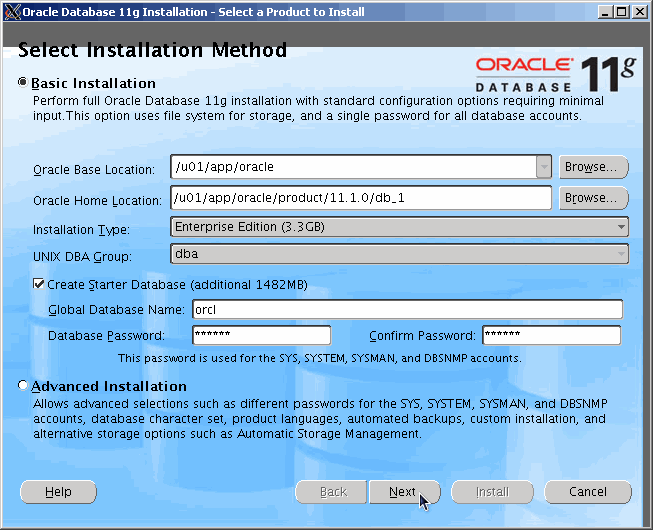
Assuming that things get this far, up pops a (less than perfect) GUI. You are free to choose anything or mofify paths, products, etc., but all we do is supply the pasword ("oracle" in our case) for the "system", "sys", etc. account(s).


For your viewing pleasure, the following pops up......


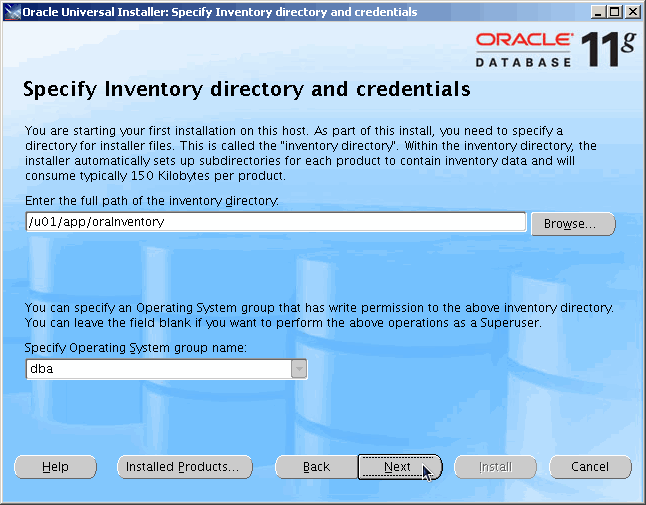
Accept the defaults here.


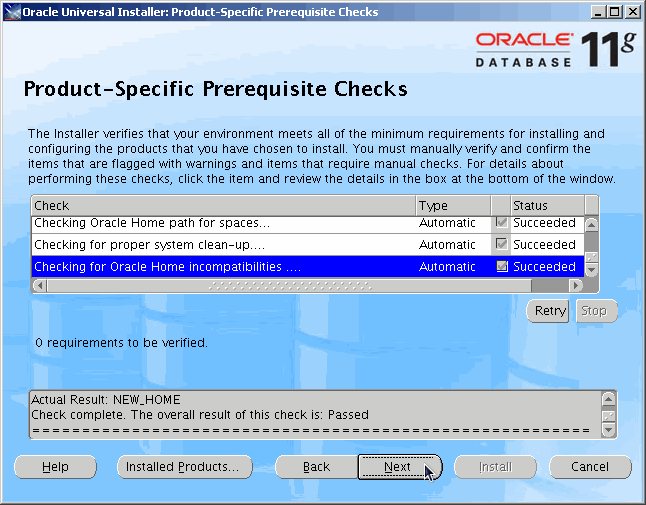
This is the last of the system checks. If all passed, continue on. If not, you should address any and all warnings before continuing. If you receive any warnings here and choose to continue, you will be warned again immediately. In our case, we passed all tests.


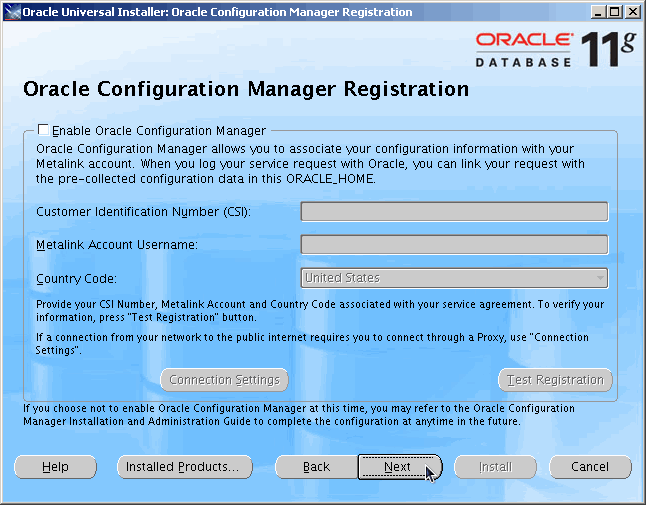
No need to address this. Continue onward.


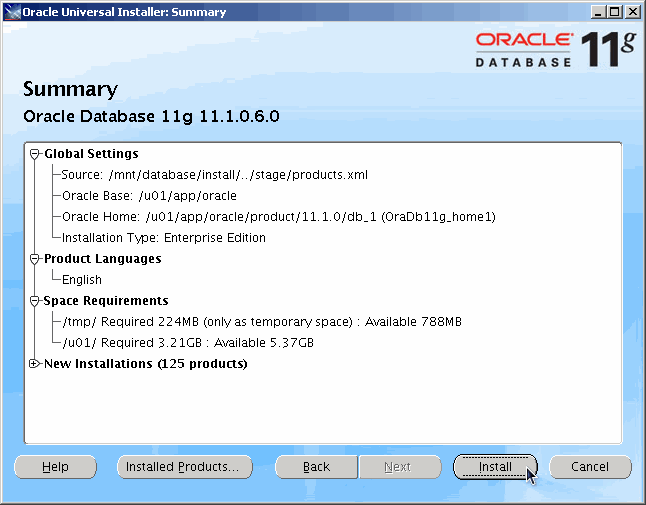
This is your last chance to go backwards. Look over your choices and if ready, Install.


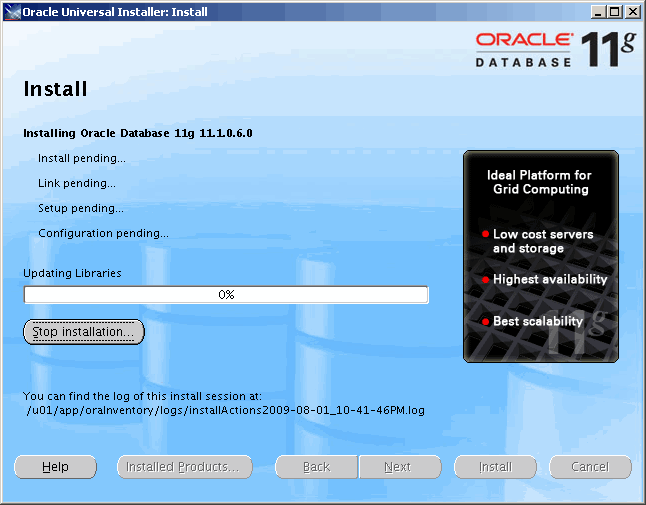
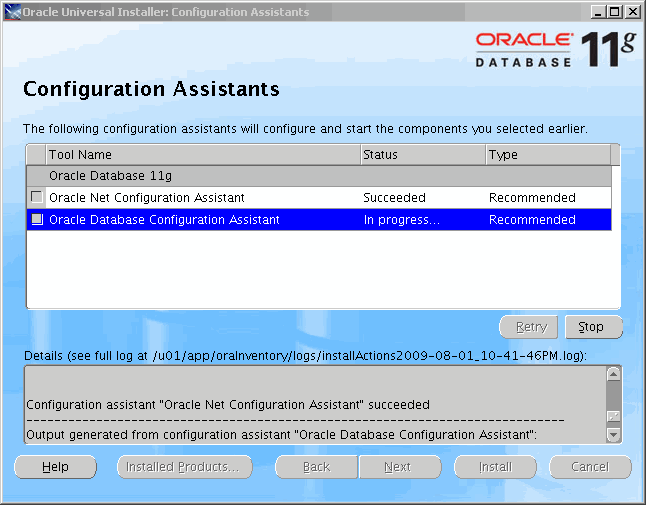
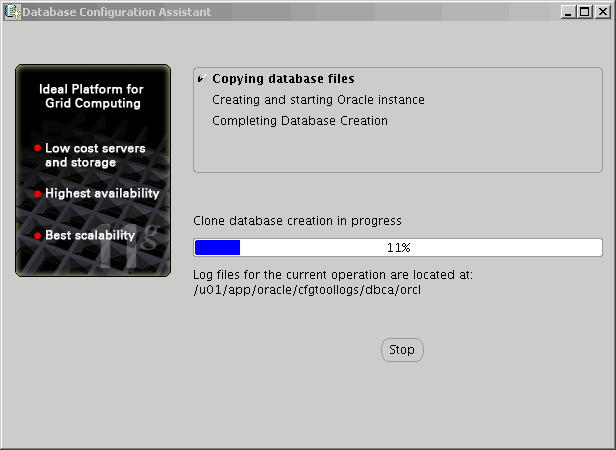
For your viewing pleasure..........


For your viewing pleasure..........


For your viewing pleasure..........


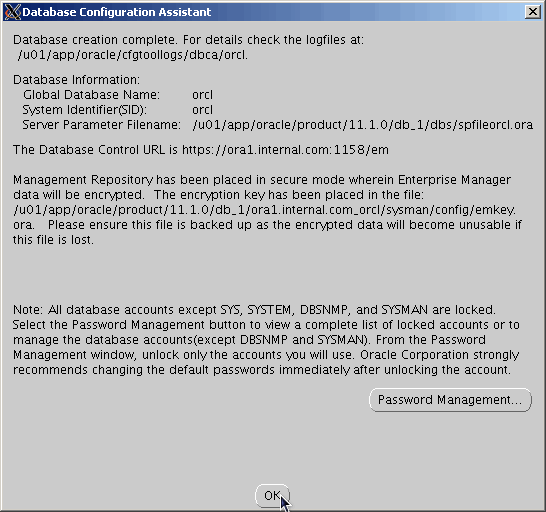
Unless you want to manage passwords here, continue.


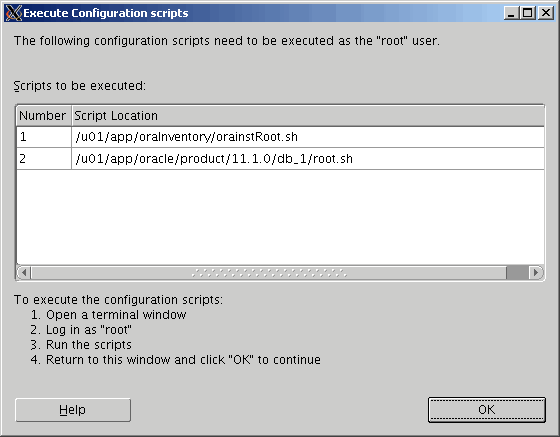
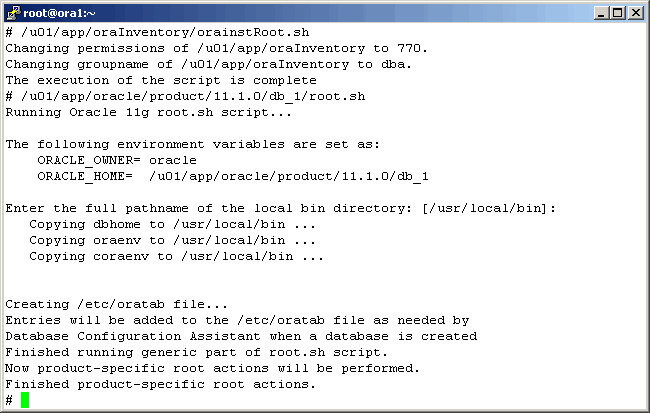
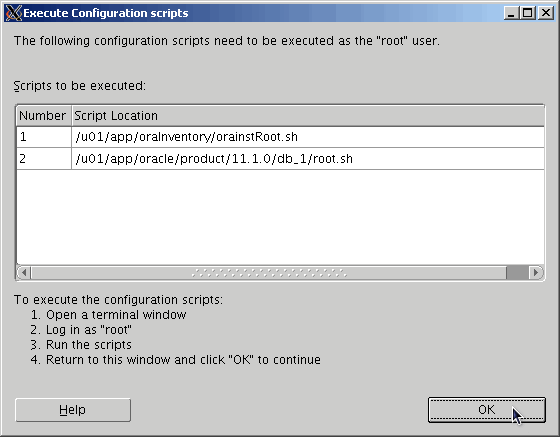
Root intervention needed now. Do not continue until you execute the requested commands as "root".


Open a new shell window, and execute the commands as "root".


Command(s)

                
/u01/app/oraInventory/orainstRoot.sh
/u01/app/oracle/product/11.1.0/db_1/root.sh


Now we can continue.


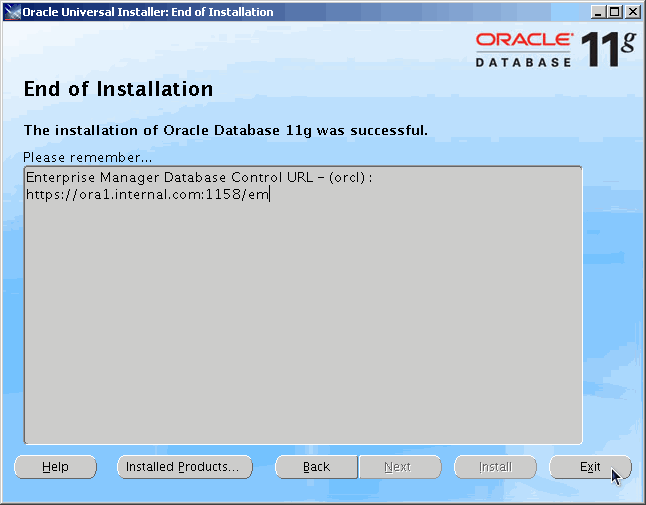
Basic installation is complete. Feel free to exit.


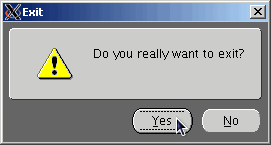
Yes, we really want to exit. :)

Post Installation


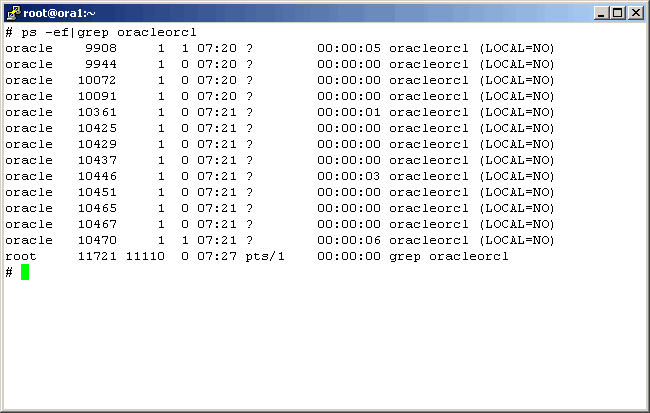
After the installation, we see that Oracle processes are running, and we see that the Oracle Enterprise Manager (OEM) is as well. While we could simply shut down the server, and Oracle would certainly recover, but let's take a gentler approach. We will gracefully shut them down. The following screen shows that the database is running.


Command(s)

                
ps -ef|grep oracleorcl


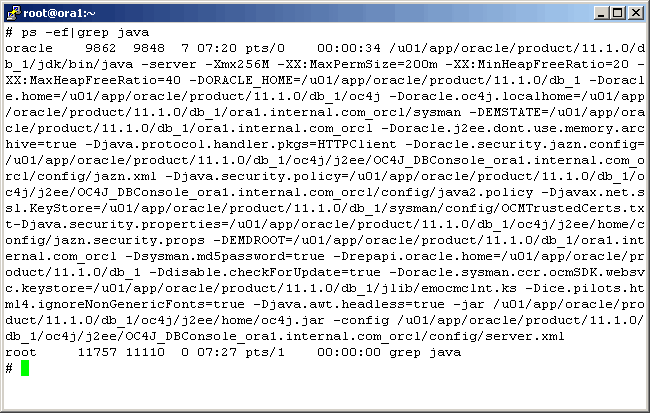
Here we see the java processes for the OEM.


Command(s)

                
ps -ef | grep java


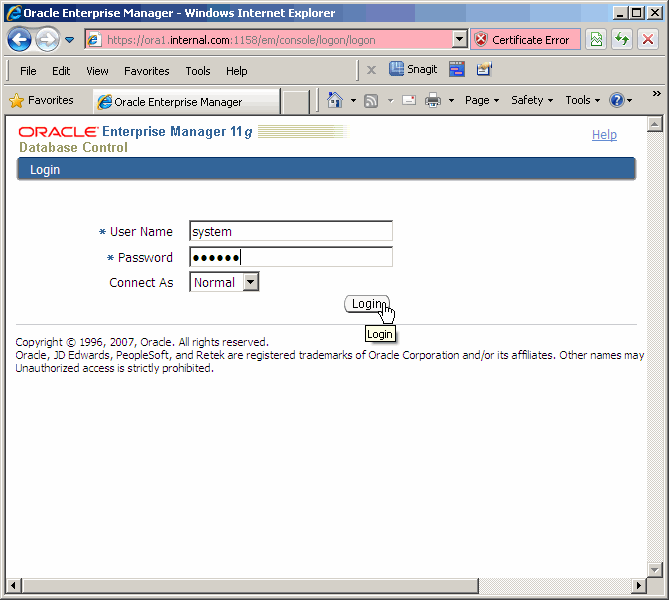
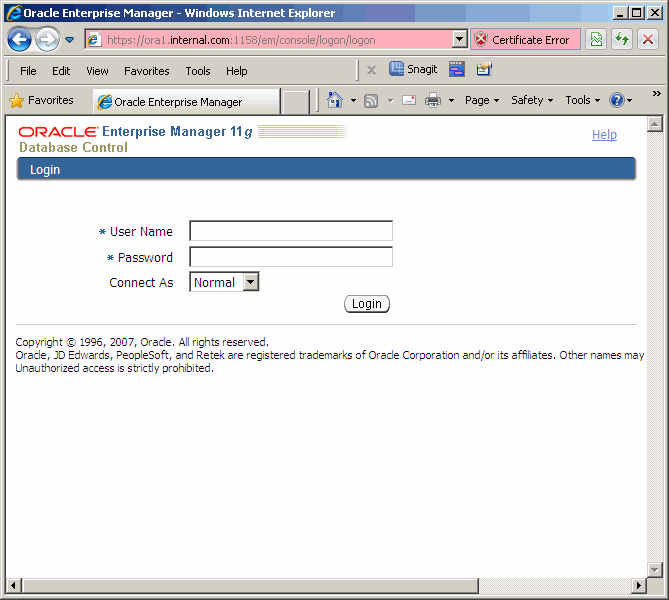
Before shutting it down, let's take a look at the OEM and then log in.


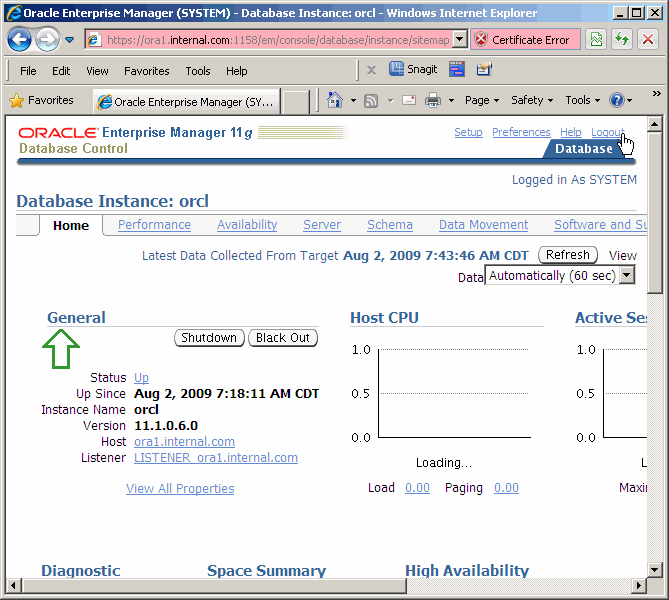
We won't do anything with this tool for now. Let's just log out.


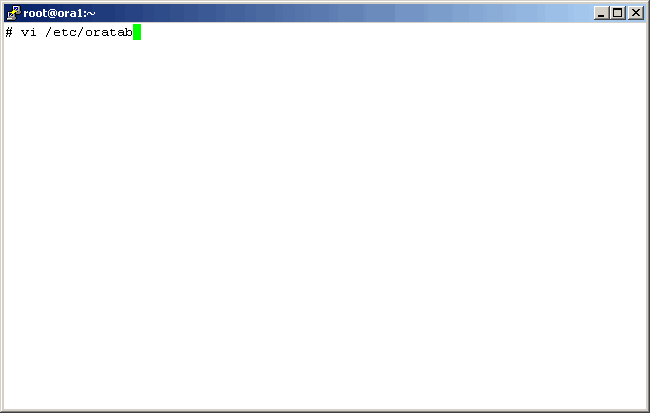
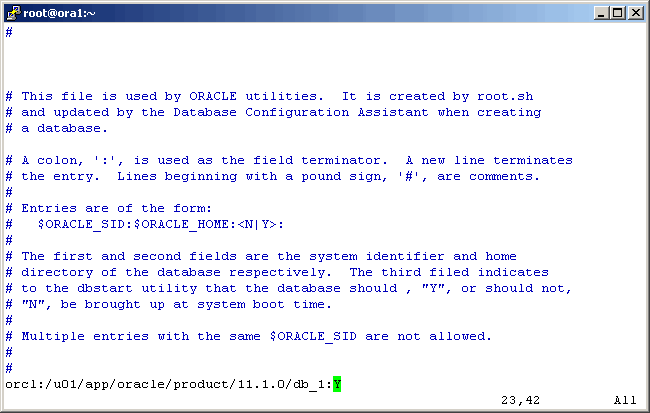
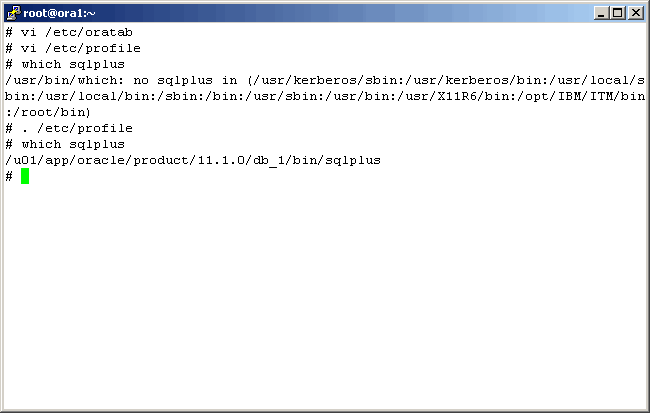
Before we forget, let's ensure that Oracle can autostart on system boot, by editing the /etc/oratab file.


Command(s)

                
vi /etc/oratab


Modify the "N" with a "Y".


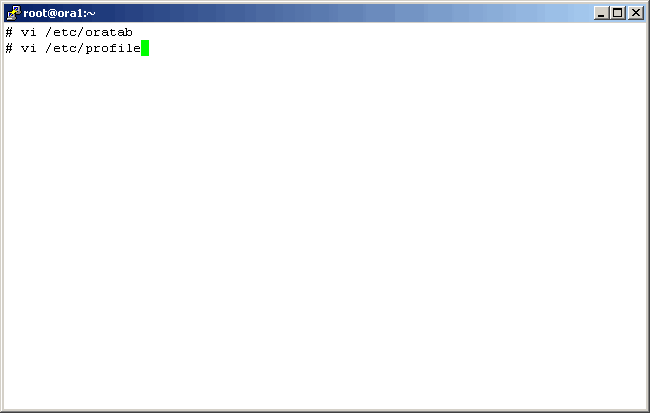
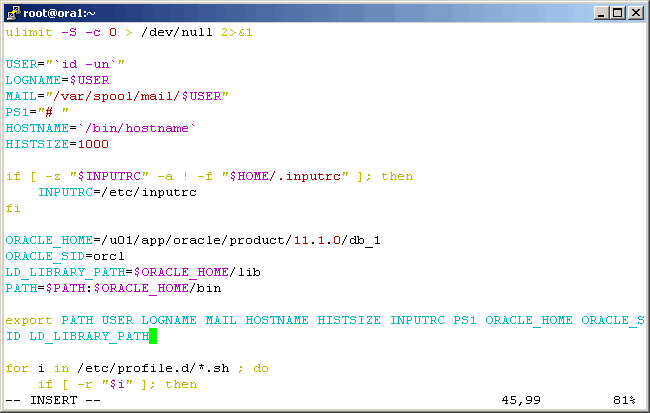
Now let's modify /etc/profle with the necessary variable and path information. Usually a DBA will devise a more cleaver way of taking care of this. However, we have a single database, dedicated server; no need for being fancy.


Command(s)

                
vi /etc/profile


Modify (and export) ORACLE_HOME, ORACLE_SID, LD_LIBRARY_PATH and PATH, as shown here.


Now test the changes as shown.


Command(s)

                
which sqlplus
. /etc/profile
which sqlplus


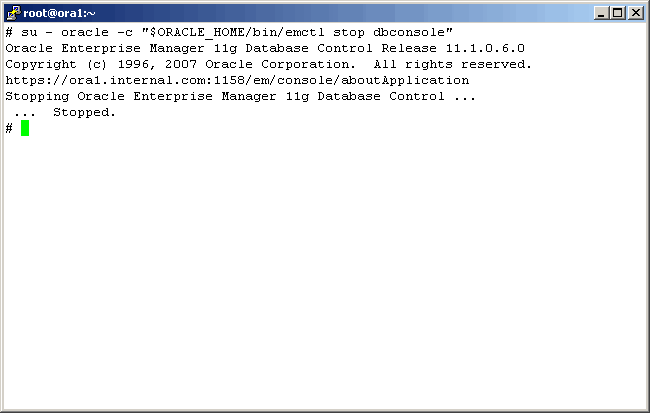
Stop the Oracle Enterprise Manager.


Command(s)

                
su - oracle -c "$ORACLE_HOME/bin/emctl stop dbconsole"


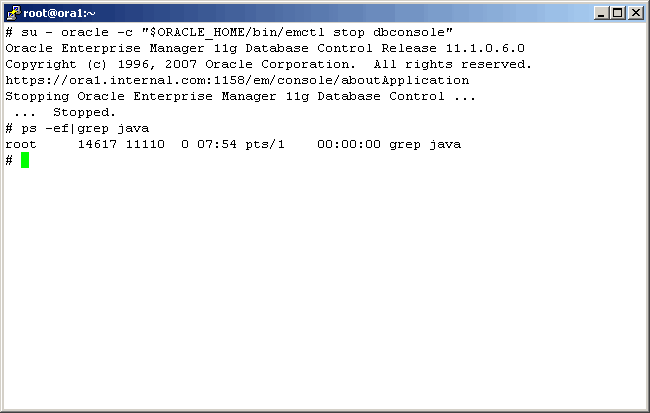
Check for the existence of any java processes.


Command(s)

                
ps -ef | grep jav


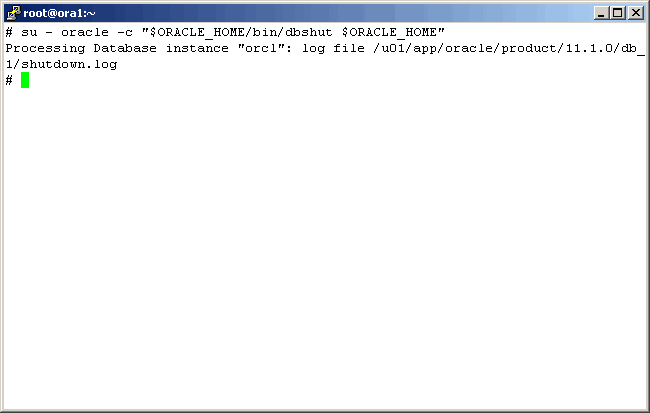
Stop Oracle.


Command(s)

                
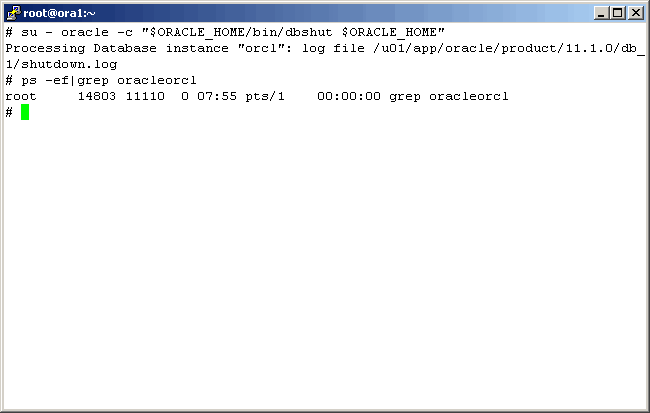
su - oracle -c "$ORACLE_HOME/bin/dbshut $ORACLE_HOME"


Is it down? Yes. The system is ready to be brought down now.


Command(s)

                
ps -ef | grep oracleorcl


Startup and Shutdown Scripts


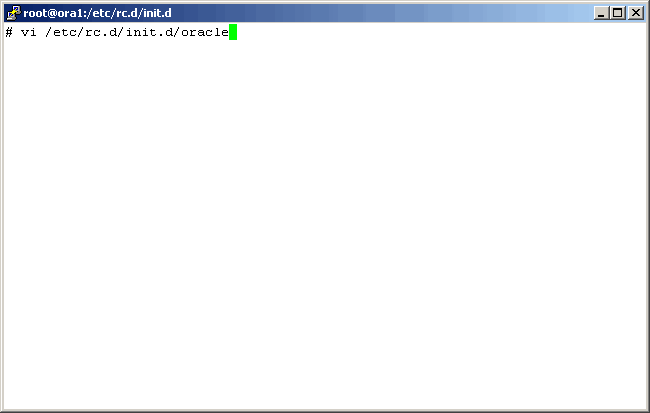
Unfortunately, Oracle does not supply system startup / shutdown scripts for the database and/or the OEM. Therefore, we will take care of it. Let's start with the database. As you should know, these scripts are located in /etc/rc.d/init.d. Open a new file for the database as shown.


Command(s)

                
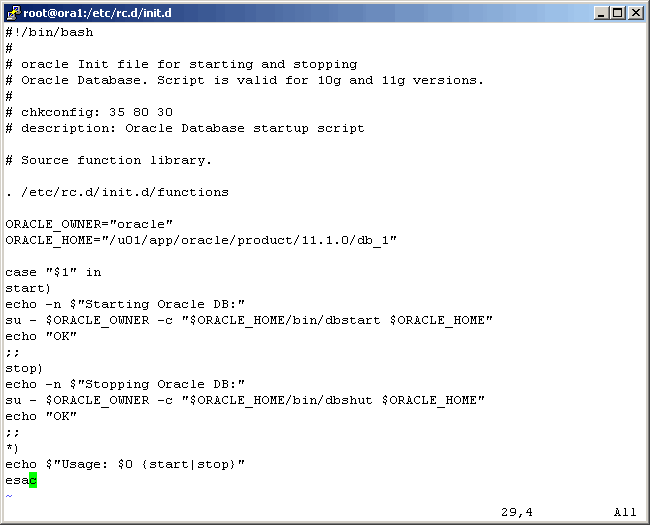
vi /etc/rc.d/init.d/oracle


This is all standard bash scripting, which we will not go over line-by-line. Let us know if further explanation is required.


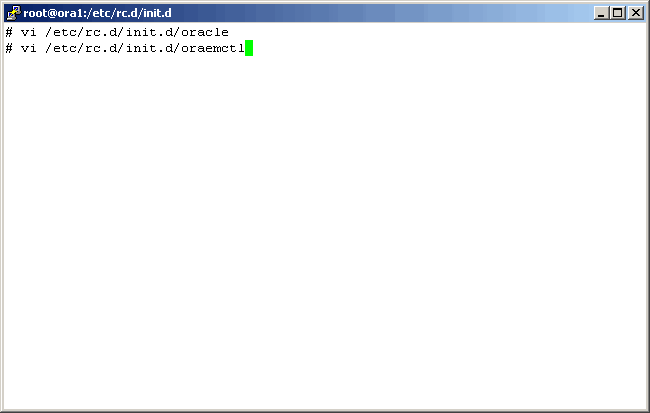
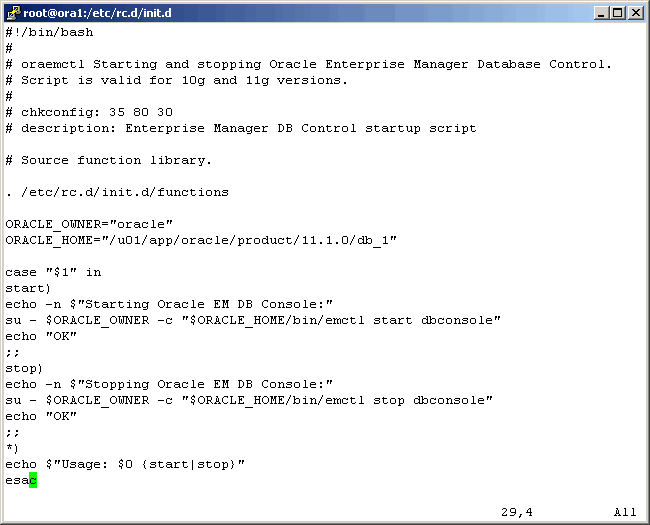
Now let's create one for the OEM.


Command(s)

                
vi /etc/rc.d/init.d/oraemctl


More basic scripting here.


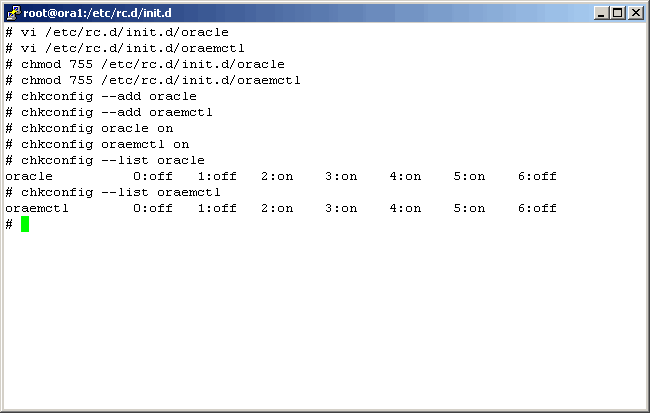
Here we do a number of things. Note that without the proper file settings, it is possible for the chkconfig commend to fail, thus the reason for our issuing the chmod command. Then we add the new scripts to service control, and instruct the system to start them upon system startup. They should also gracefully shutdown as well.


Command(s)

                
chmod 755 /etc/rc.d/init.d/oracle
chmod 755 /etc/rc.d/init.d/oraemctl
chkconfig oracle on
chkconfig oraemctl on
chkconfig --list oracle
chkconfig --list oraemctl


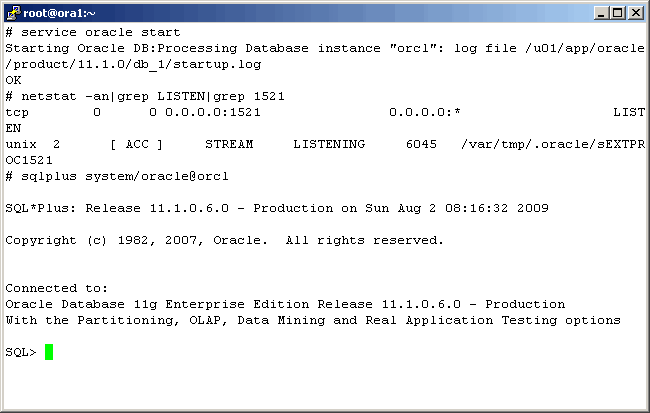
Start the Oracle database with the new script using the service command as shown. Once the database is up, log in as the system account, also as shown.


Command(s)

                
service oracle start
netstat -an|grep LISTEN|grep 1521
sqlplus system/oracle@orc1


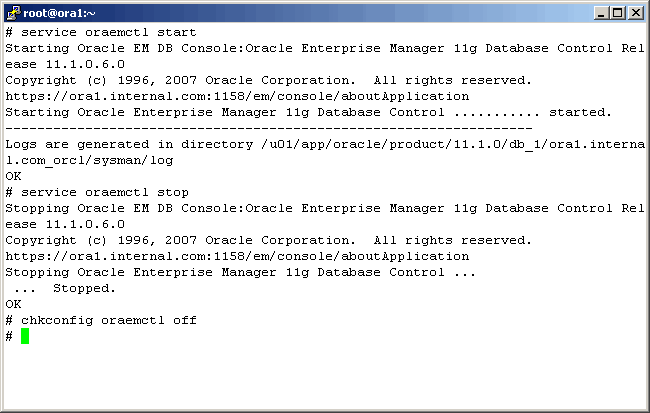
Now start the OEM using the service command. Also, note that we disable autostart of this product as we will rarely, if ever use it. Java can take up many resources, better used elsewhere.


Command(s)

                
service oraemctl start
service oraemctl stop
chkconfig oraemctl off


A little misstep here. Before we stopped the OEM in the previous step, we checked to see if it was reachable.

Conclusion


At this point we have fully functional Oracle 11g database server. Connectivity to it, via port 1521 is posible from anywhere in our network. If you have anything to add to this article, please feel free to do so.

Printing

As it turns out, as we are busy working on the HTML/CSS/php/Java Script formatting of our articles, pretty printing is not yet possible. We are working on it at a low priority.